
There is no single perfect posture, and no chair — however expensive — that makes eight motionless hours healthy. But the arrangement of your desk, screen, keyboard, and seat genuinely affects how your body feels at the end of the day. Small mismatches — a screen slightly too low, a mouse slightly too far, a chair that leaves your feet dangling — accumulate into neck stiffness, shoulder tension, eye strain, and lower-back achiness that many people accept as the inevitable price of desk work. It is not inevitable.
A comfortable setup is not about buying premium equipment. It is about fitting the workstation to your body rather than contorting your body to fit the workstation, and it is about building movement into a day that would otherwise be still. This guide walks you through the adjustments that matter most, roughly in order of impact, using whatever furniture you already have. If you experience persistent or worsening pain, numbness, or tingling, seek professional assessment — ergonomics helps comfort, but it does not diagnose or treat medical conditions.
Start with your foundation: feet, seat, and back
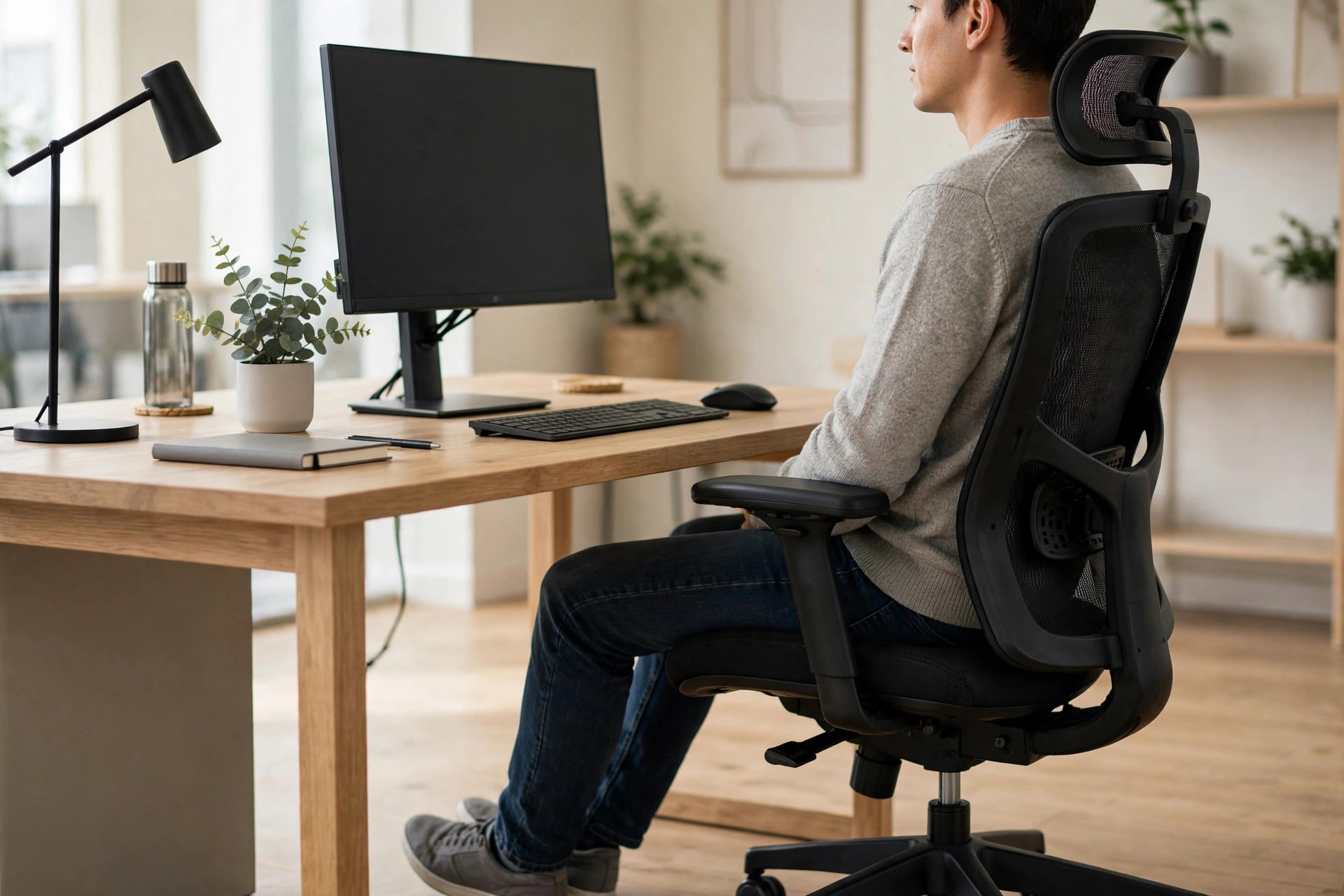
Everything in a desk setup builds upward from how you sit. Begin with your feet: they should rest flat on the floor (or on a footrest) with your knees at roughly a right angle, thighs roughly parallel to the floor. If your feet dangle, your chair is too high for you — lower it, or add a footrest. Dangling feet might seem trivial, but they quietly pull your whole posture out of alignment and compress the backs of your thighs, which affects circulation over long hours.
Next, your seat. Sit back so your lower back is supported by the chair’s backrest — perching on the front edge of the seat forces your spine to do unsupported work all day. If your chair lacks lumbar support, a small rolled towel placed at the small of your back works surprisingly well. Your shoulders should be relaxed, not hunched toward your ears or rounded forward; think of your shoulder blades resting gently flat against your ribcage. Elbows should hang naturally at roughly right angles when your hands are on the keyboard.
Keep frequently used items close
Reach is an underrated source of strain. Every time you stretch for a mouse placed too far away, crane toward a phone, or twist for documents, you load your shoulders, neck, and back asymmetrically — and you do it hundreds of times a day. Arrange your desk in zones: the things you use constantly (keyboard, mouse, phone, water) belong within easy elbow reach, without stretching; items you use hourly (notebooks, reference papers) go at arm’s length; everything else can live farther away.
This zoning has a bonus benefit: placing the printer, files, or supplies you fetch regularly a short walk away turns necessary trips into movement breaks. The things you touch every few minutes should require no reaching; the things you fetch a few times an hour can require standing. Design the desk so that comfort is the default and movement is the occasional necessity — not the other way around.
Give your hands an easy working position
Your keyboard and mouse deserve more attention than they usually get. Position the keyboard so your wrists stay straight and relaxed — not bent upward, downward, or sideways — with your elbows at roughly ninety degrees. If your keyboard has flip-out feet that tilt it toward you, try folding them flat; a flat or slightly negative tilt is usually kinder to wrists than a positive tilt.
Place the mouse immediately beside the keyboard at the same height, close enough that your upper arm hangs relaxed rather than reaching outward. Gripping the mouse tightly or clicking with tense fingers contributes to hand and forearm discomfort over time — consciously relax your grip periodically. If you use a laptop as your main machine, the built-in keyboard and trackpad force a compromise (more on that below), but an inexpensive external keyboard and mouse used at a proper desk instantly improve the geometry.

Put the screen where your eyes are comfortable
Screen position drives neck posture more than anything else at a desk. The top of your screen should sit at or just below eye level, about an arm’s length away — close enough to read comfortably without leaning forward, far enough that you are not overwhelmed by it. When the screen is too low, your head tips forward; for every inch your head drifts in front of your shoulders, the effective load on your neck muscles increases substantially. Hours of that forward drift is the classic recipe for end-of-day neck and upper-back achiness.
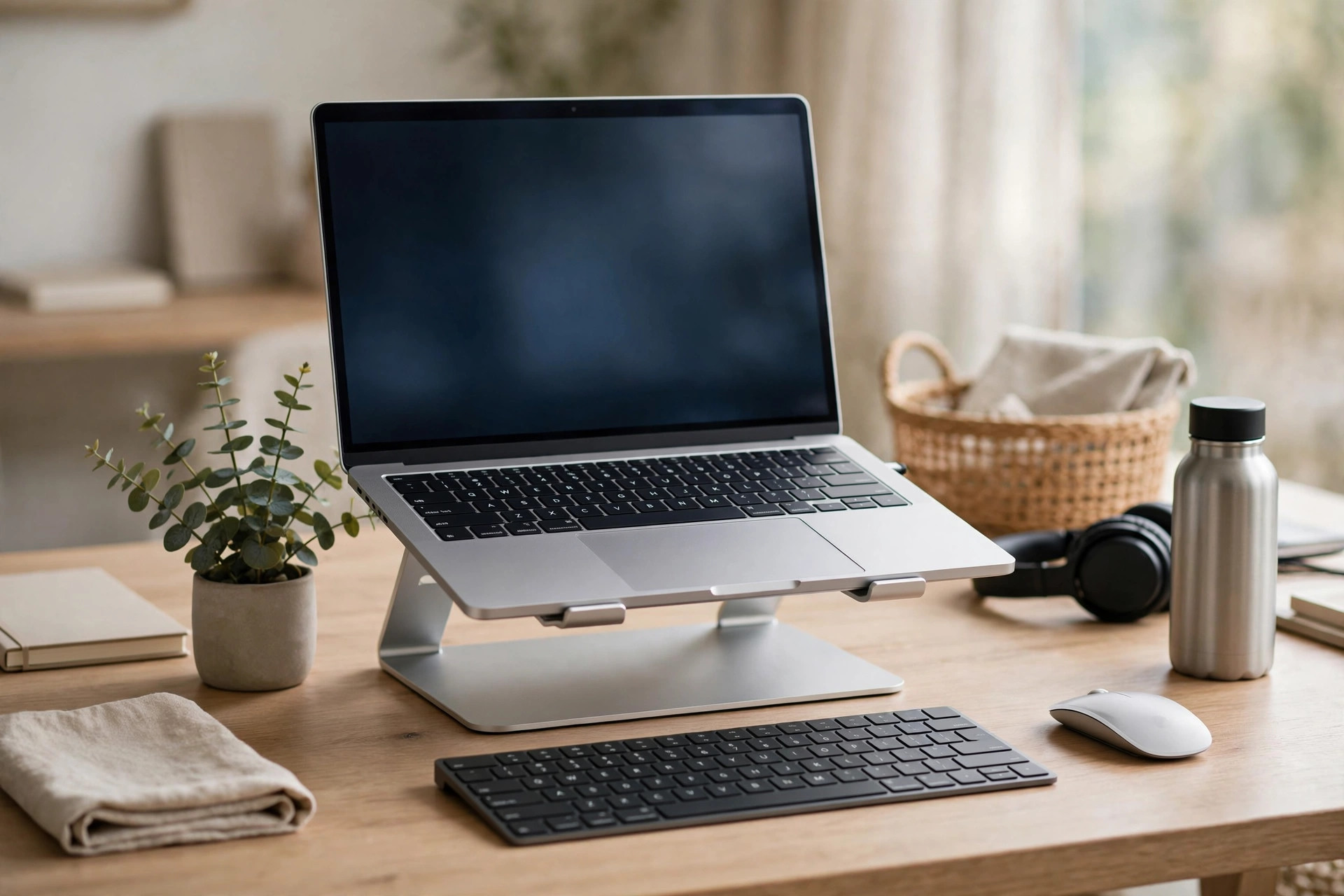
If you use a monitor, raise it with a stand, a stack of books, or a monitor arm until the height is right. If you use a laptop on a desk for long periods, elevate the laptop on a stand (or a sturdy box) and use an external keyboard and mouse — this single change transforms laptop ergonomics, because it separates screen height from keyboard height, which a laptop otherwise forces you to compromise. Your neck will notice the difference within days.
Straighten your view and lighting before buying new gear
Before spending money, check the free fixes. Centre the screen directly in front of you — working with your head turned toward a side-placed monitor for hours is a sure way to end up with neck pain. If you use two monitors, place the one you use most directly ahead and the secondary one to the side; if you use both equally, centre yourself between them.
Lighting matters for eye comfort. Position the screen perpendicular to windows rather than facing them (glare) or backing onto them (your eyes struggle with the bright background). Match screen brightness roughly to your surroundings — a glowing screen in a dark room, or a dim screen in bright daylight, both force your eyes to work harder. Increase text size rather than leaning in to read; leaning is a posture problem disguised as a vision problem. Follow the 20-20-20 guideline for eye rest: every twenty minutes, look at something twenty feet away for twenty seconds.
Make laptop work less cramped
Laptops are wonderful for portability and punishing for posture, because the screen and keyboard are attached: any height that suits your eyes puts the keyboard too high, and any height that suits your hands puts the screen too low. For occasional use this hardly matters; for hours daily, it does.
The hierarchy of improvement is simple. Good: use the laptop on a proper desk and chair rather than a sofa or bed, and take frequent breaks. Better: add an external keyboard and mouse, and prop the laptop on books or a stand so the screen top reaches eye level. Best: connect to an external monitor at the right height and use the laptop as the computer behind it. Each step up meaningfully reduces the daily postural load. If you work in multiple locations, a portable laptop stand and a compact external keyboard are a small investment with daily returns.
Change position during the day — setup is not enough
Here is the truth that equipment sellers rarely mention: the best posture held all day is still holding one posture all day, and the human body is not designed for that. Even a perfectly adjusted workstation becomes uncomfortable if you never move. The final and most important element of a comfortable desk life is variety — changing position regularly across the day.
Stand up briefly every thirty to sixty minutes: get water, look out of a window, do a few shoulder rolls, walk to fetch something. These micro-breaks do more for your comfort than any chair upgrade. If you have a sit-stand desk, alternate between sitting and standing in roughly hour-long blocks rather than standing all day (prolonged static standing brings its own problems — variety, not standing, is the goal). Without a sit-stand desk, you can still vary posture: take phone calls standing, hold walking meetings, or simply stand and stretch between tasks.
Take movement snacks through the day
Gentle movement snacks counteract desk stiffness beautifully. Every hour or two, spend one minute on a few movements: chin tucks (draw your chin straight back to counter forward-head posture), shoulder blade squeezes (hold five seconds, repeat five times), standing back extensions (hands on lower back, gently arch backward), and neck side-tilts. None of these require equipment, attract attention, or interrupt work meaningfully — and together they undo much of what sitting accumulates.
Finally, treat discomfort as information, not failure. If your neck aches every afternoon despite adjustments, something in the setup still needs changing — or the issue may need professional eyes. Ergonomics is iterative: adjust, live with it for a week, notice what improved and what did not, and adjust again. Combined with regular movement, this patient tuning process is what turns a desk from a source of daily aches into a place where your body can comfortably do its work.

Sources and further reading
The sources listed here back up the general health information in this guide. The examples and daily routines are practical illustrations — not personal medical advice.
This article is for general education only. It was created with AI assistance and has not been clinically reviewed. For guidance about your own situation, please speak with a qualified health professional.